Appendix B — Introduction to Computing in RStudio
Note that this section is only for those who would rather use RStudio than Jupyter. Jupyter is sufficient for this class but RStudio is more flexible and encouraged for larger statistics projects.
Using RStudio
Installing R and RStudio is quite straightforward. One advantage of using RStudio is that you do not need to be connected to the internet, unlike Jupyter.
To set this up the order is quite important.
We first install R, and download it at this link
Then, when that is completed, install RStudio, which can be downloaded at this link
This series of YouTube videos are very clear on how this works and consider Mac Windows and Linux computers. If anyone is using a Chromebook you will have to use the alternative Jupyter setup described below.
When you open RStudio for the first time it will look like this.
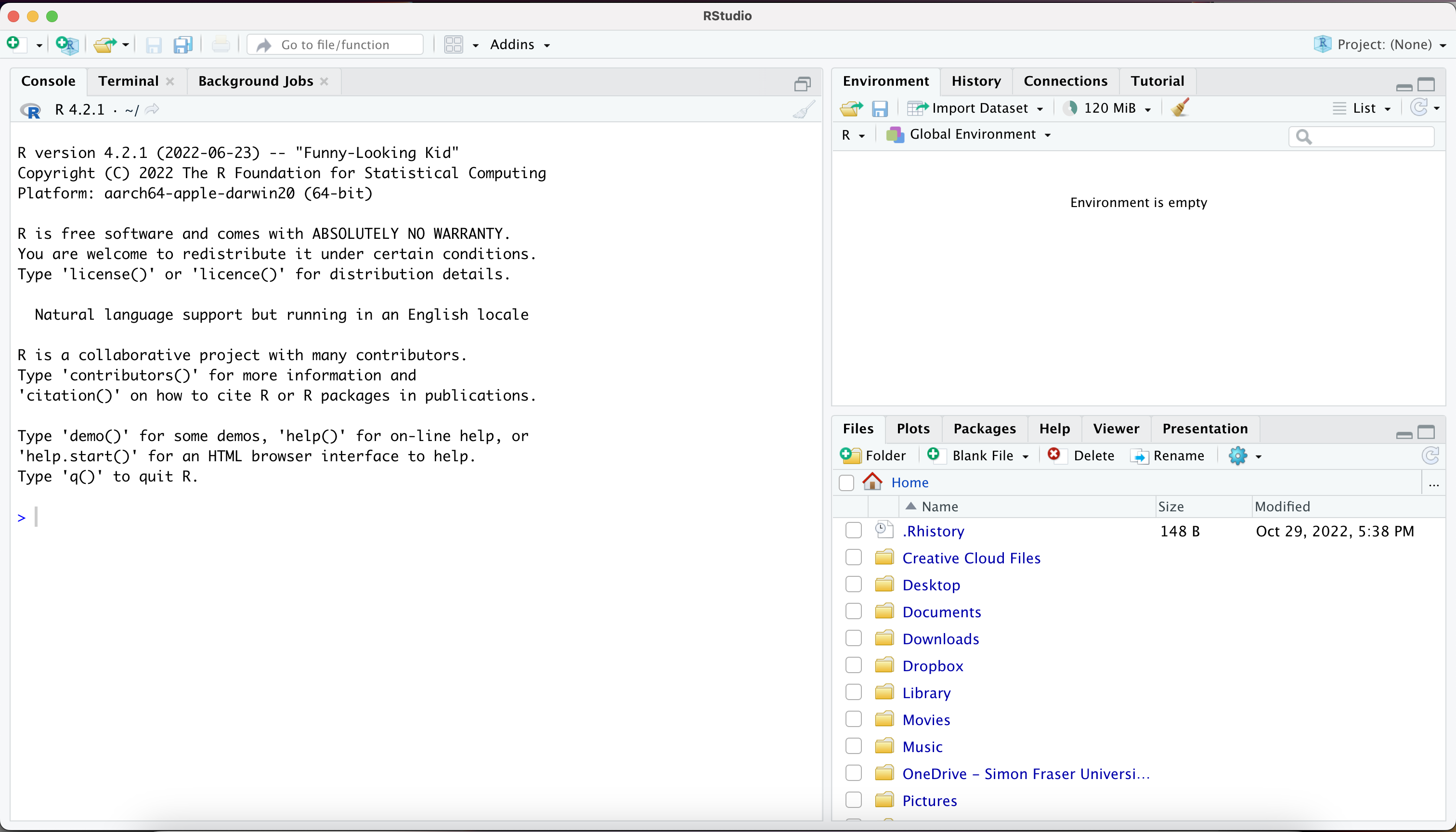
Most important for now is the console, on the left hand side. This is where you can do interactive computation. This will read code line by line and give you the output. You input code at the prompt >. When you press Return, that code will run and give you some output.
R Markdown with RStudio
If you are using RStudio, I would highly recommend using R Markdown to create your homework for submission.
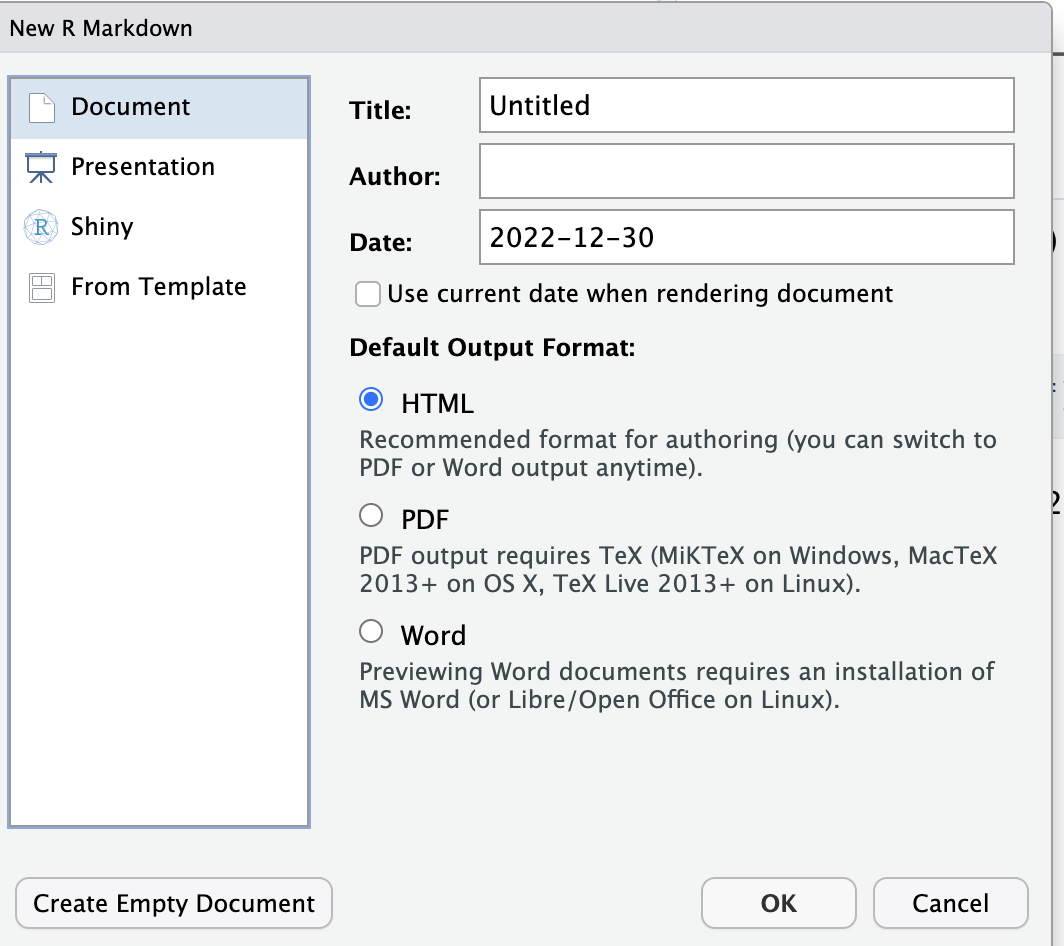
R Markdown is a type of document. You can create a blank one in RStudio by clicking File and then New File and selecting R Markdown. Select Document and keep the output format as HTML (selecting pdf at this stage is complicated).
This will open a new R Markdown file with a template.
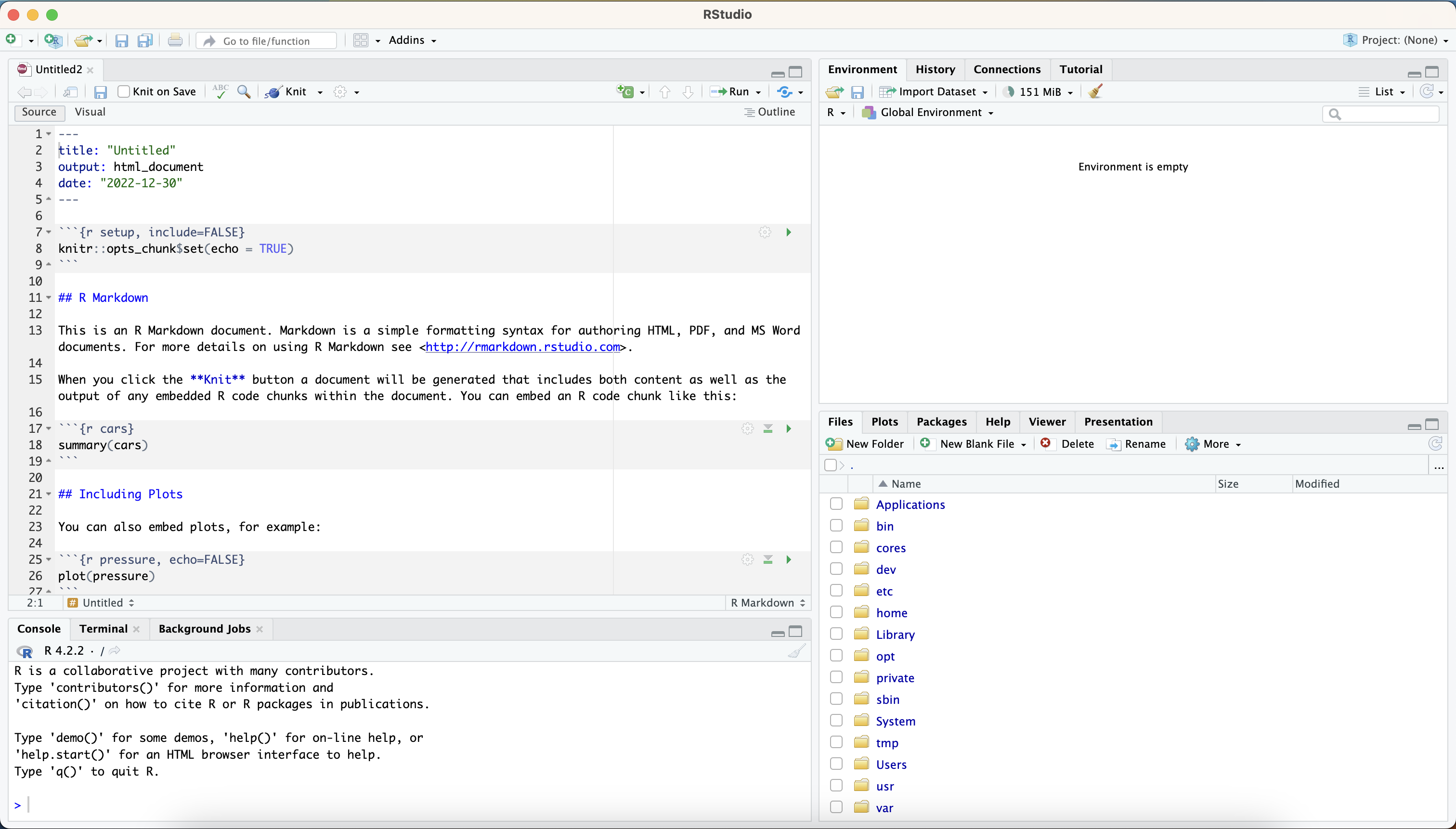
If you press the Knit button, you will be prompted to save this file. Where you save it is important! I recommend creating a folder on your computer for this class, and within that folder creating a subfolder for homeworks. (I would also recommend using OneDrive/Google Drive/Dropbox to back up your files.)
Save this file there, calling it First_RMark.Rmd. Then, this will Knit the document, creating a file with the same name but now with the html extension. It will also open in the Viewer tab beside files, where you can see what it looks like.
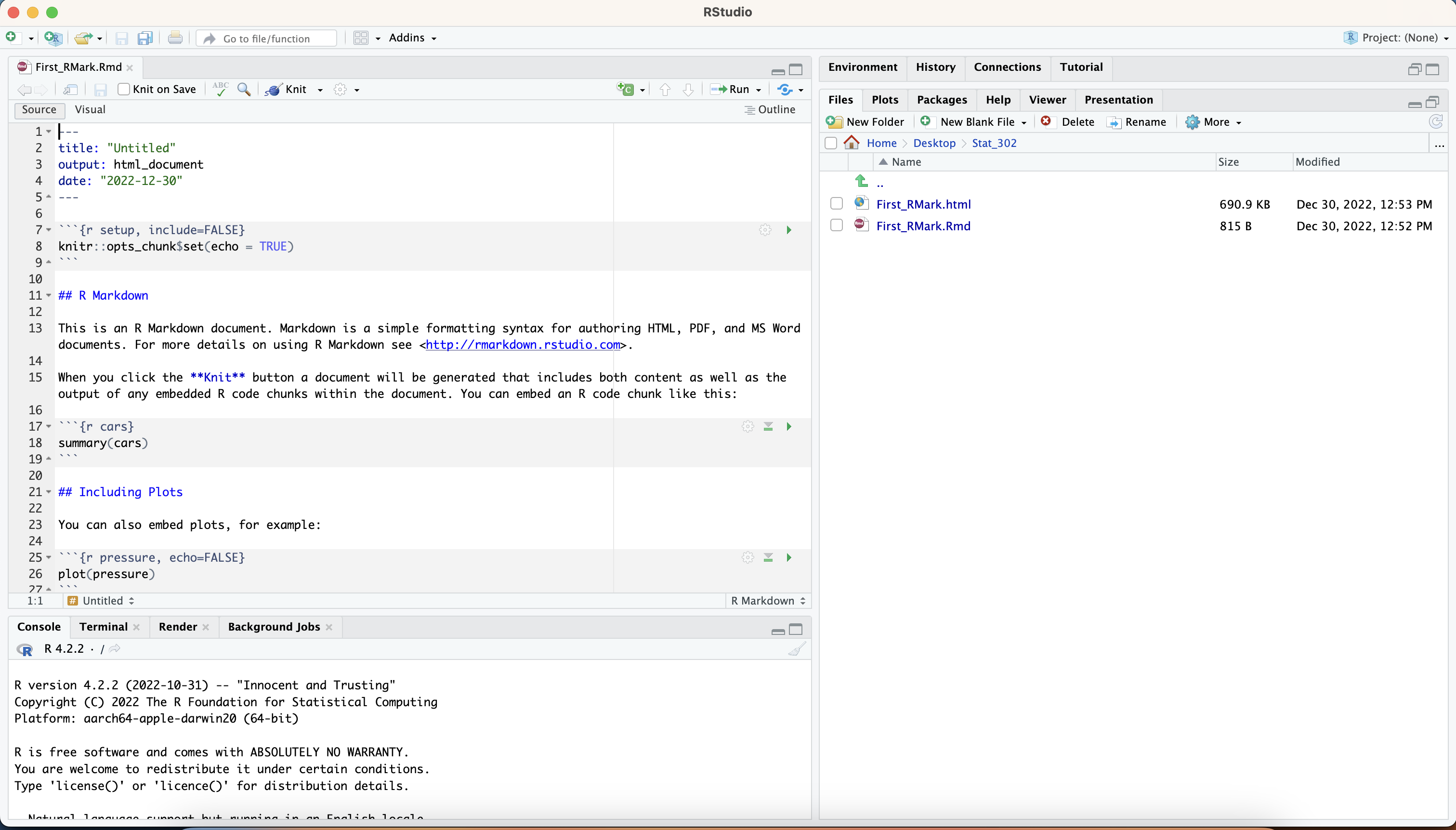

You can also open this html file by clicking on it, and opening it with your web browser.

This is almost in the format we want to submit, except we need to convert it to pdf. To do this, when it is open in the browser you should Print it to PDF, saving it with the correct name.
This pdf is what you should then submit to Crowdmark.